0.6 Checkpoint: measure your machine
Time to replace guesses with numbers. You need four facts about the machine that will host your lab: how much RAM it has, how many CPU cores, how much free disk, and whether hardware virtualization is switched on. The last one trips people up constantly, because plenty of laptops ship with it disabled and nothing ever complains until a hypervisor won't start.
Run the commands for your operating system. Reading the comments counts as part of the lesson; this is also your first taste of how scripts are written in this course.
Windows
Open PowerShell (Start menu, type "powershell") and run these:
# Total RAM in GB. Win32_ComputerSystem holds physical hardware facts;
# the division just converts bytes into something readable.
(Get-CimInstance Win32_ComputerSystem).TotalPhysicalMemory / 1GB

# Physical cores and logical processors (hyperthreading counts double).
Get-CimInstance Win32_Processor | Select-Object Name, NumberOfCores, NumberOfLogicalProcessors

# Free space on C: in GB.
(Get-PSDrive C).Free / 1GB
What that looks like when it works, so you can check your own against something real rather than wondering:
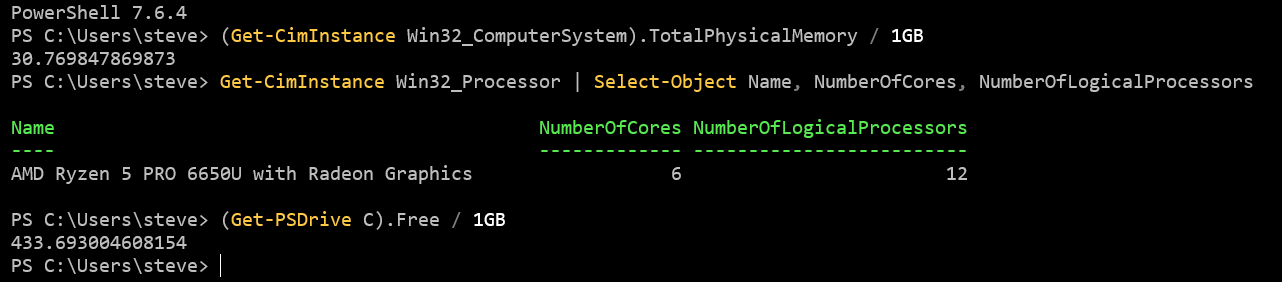
Your numbers will be different and that is the entire point of the exercise.
What should match is the shape: a long decimal for the memory, a table with
three columns for the processor, and another long decimal for the disk. Round
the decimals when you write them down. 30.769847869873 is 30 GB, and nobody
needs the rest of it.
If a command prints an error instead, the usual cause is a typo in
Get-CimInstance. If it prints nothing at all, you are probably still inside
a continuation prompt from an unclosed bracket: press Ctrl+C and try the line
again.
For virtualization, the quickest check is Task Manager: press Ctrl+Shift+Esc, open the Performance tab, click CPU, and look for the line Virtualization: Enabled on the right.
Linux
# RAM, human readable. Look at the "total" column.
free -h

# CPU model, how many processors, and whether hardware virtualization
# is available. lscpu prints about forty lines and you need four of
# them, so the "| grep" part keeps only the lines whose labels match.
# Pipes get explained properly in Module 2; today just run it.
lscpu | grep -E 'Model name|^CPU\(s\)|Core\(s\) per socket|Thread\(s\) per core|Virtualization'

# Free space on your home filesystem.
df -h ~
What that middle command prints, from a real run:
CPU(s):                                  8
Model name:                              Intel(R) Xeon(R) CPU E5-2630 v3 @ 2.40GHz
Thread(s) per core:                      1
Core(s) per socket:                      1
Virtualization type:                     full
Use CPU(s) as your processor count. It is the number the machine
actually offers, and it is the one that matters when you size virtual
machines later.
The virtualization line has two different forms and they mean opposite things, which is worth knowing before you misread yours:
Virtualization: VT-xorVirtualization: AMD-Vis what you want. It says this machine's processor can run a hypervisor.Virtualization type: fullmeans something else entirely: you are already inside a virtual machine. That is what the example above is showing, because it was run on one. Whether you can then run another hypervisor inside it is a separate question your host has to answer.- Neither line appearing at all usually means virtualization is switched off in your firmware. The next section deals with that.
If the whole command prints nothing, do not conclude anything about your
hardware. It means no label matched, which happens on some distributions and
in some languages. Run lscpu on its own and read the output yourself.
macOS
Apple menu, About This Mac. If the chip line says Apple M1/M2/M3/M4, stop here: as covered in lesson 0.3, the Windows portions of this course won't run on Apple Silicon, and I'd rather lose you honestly at Module 0 than dishonestly at Module 5. An Intel Mac works; virtualization is always enabled on those, so you only need the RAM and disk numbers.
If virtualization shows disabled
It's a firmware setting. Reboot into your BIOS/UEFI setup (usually mashing F2, F10, or Del during startup, and laptop vendors all hide it somewhere different) and look for Intel VT-x, Intel Virtualization Technology, or SVM Mode on AMD, usually under an Advanced or CPU menu. Enable it, save, reboot, and re-run the check. If the option truly doesn't exist, the machine is too old for this lab.
Close the loop
Lesson 0.5 had you write your machine's numbers from memory, or leave them blank. Open that entry now and put the measured numbers in. That thirty seconds is the first instance of a habit this course leans on hard: the journal records what you verified, not what you assumed.
Pass criteria
- You know your RAM, cores, and free disk as actual numbers, from the commands above
- Virtualization shows Enabled in Task Manager, or VT-x / AMD-V
in
lscpu. Intel Macs: always on, as covered above - You have roughly 180 GB free, the Tier 1 figure from lesson 0.3, or a plan to free it up
- You've picked your starting tier from lesson 0.3
- All four facts are written in your journal entry from lesson 0.5, measured, not guessed
All checked? Module 1 is waiting, and it's where the tools come out.