The CyberRack v1.1 build
This is the whole design on one page. The charter has the reasoning in full; this is the specification and what each part is there to teach.
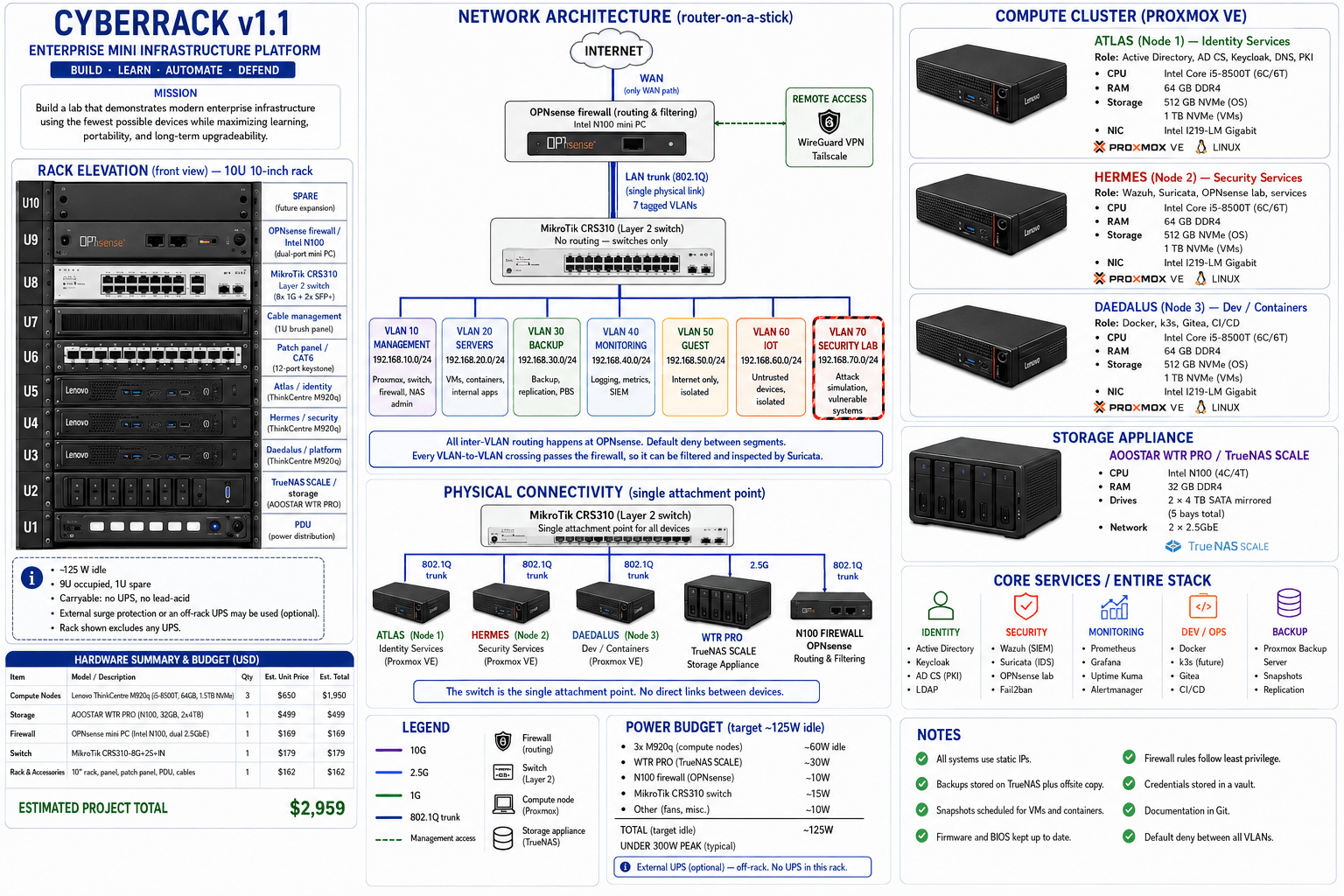
Everything at once, and then one thing at a time. The sheet above is the build as a whole: real hardware, every number, the full service list. It is the picture to send someone who asks what you are building, and the one to print and stick above the desk while you buy parts.
It is also, deliberately, too much to learn from. The three diagrams further down each take one question and answer it properly: what is physically in the rack, what runs where, and how traffic moves. Skim the sheet now for the shape of the thing, then use the focused ones when you want to actually understand a piece of it.
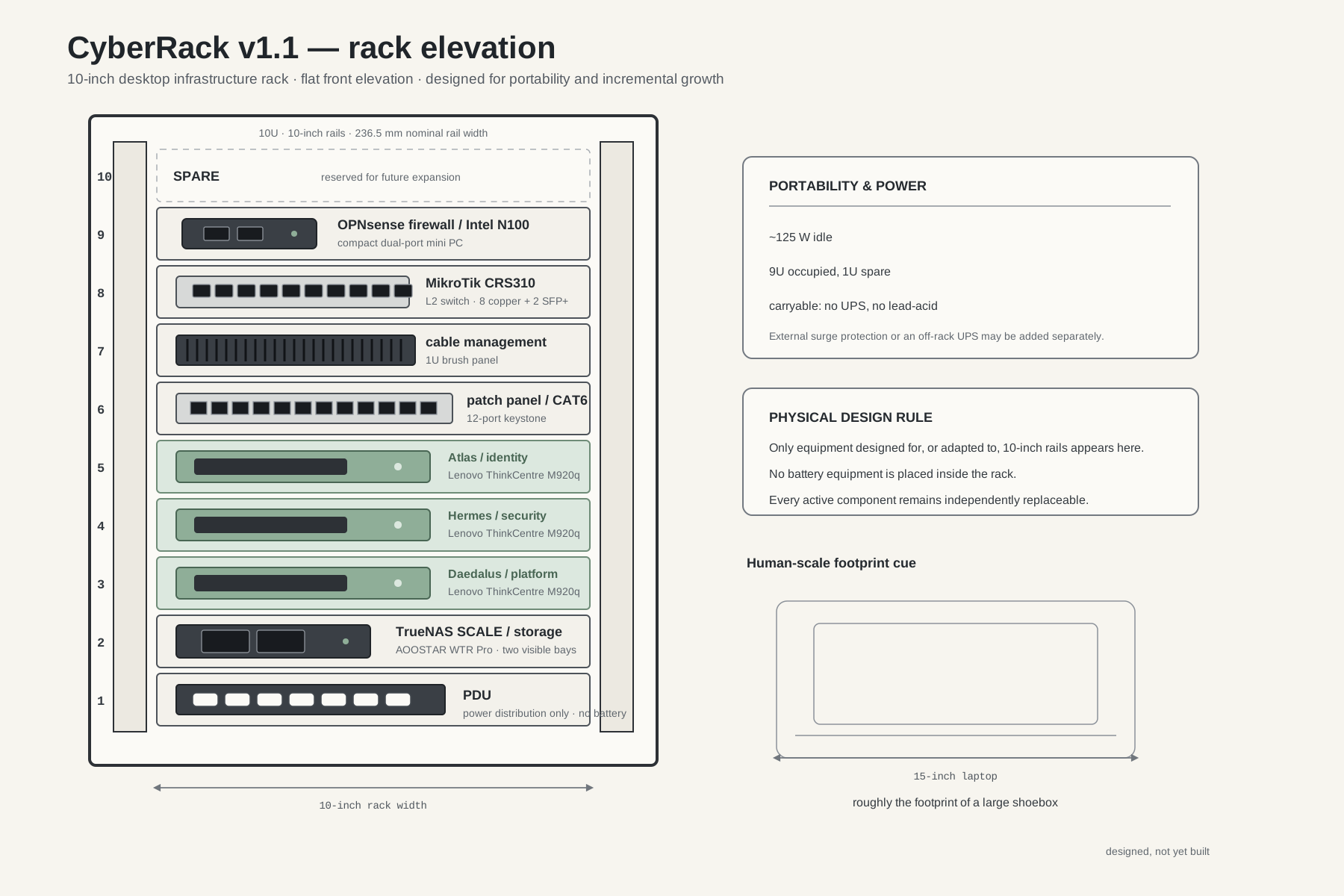
How to read it. Numbers down the left are rack units, counted from the bottom the way real racks are. The three shaded units in the middle are the compute cluster, shaded together because they are one thing, not three. U10 is left empty on purpose: a rack with no spare unit is a rack you cannot add to.
The two things worth noticing are what is not there. There is no uninterruptible power supply, for reasons in its own section below. And nothing here is a server in the rack-mount sense. Every box is a desktop machine on a shelf, which is why the whole thing has roughly the footprint of the laptop drawn beside it.
What it is
Three matched mini PCs running a Proxmox VE cluster, a dedicated storage appliance running TrueNAS SCALE, an OPNsense firewall, and a managed switch, in a 10-inch, 10U rack. Roughly the footprint of a large shoebox, targeting about 125 watts idle.
Nobody has assembled this. Every figure below is a design target or an estimate from vendor specifications and used-market prices, not a measurement from a running rack. Treat the costs as a shape and the power numbers as a budget you'd verify with a plug meter on day one.
| Domain | Model | Qty | Unit | Est. total |
|---|---|---|---|---|
| Compute | Lenovo ThinkCentre M920q (i5-8500T, 64 GB, 1.5 TB NVMe) | 3 | $650 | $1,950 |
| Storage | AOOSTAR WTR Pro (N100, 32 GB, 2× 4 TB) | 1 | $499 | $499 |
| Firewall | OPNsense mini PC (Intel N100, dual 2.5GbE) | 1 | $169 | $169 |
| Switch | MikroTik CRS310-8G+2S+IN | 1 | $179 | $179 |
| Rack & accessories | 10-inch rack, panel, patch panel, PDU, cables | 1 | $162 | $162 |
Estimated total: $2,959. Prices are from the used market and move around; treat them as a shape rather than a quote, and keep five to ten percent back for the part that arrives broken.
Worth noticing: the charter sets a target of $2,500, and this bill of materials comes to $2,959. That gap is left visible on purpose. Budgets get set before prices get checked, every real project meets this moment, and the useful question is which line you cut rather than whether the spreadsheet was ever wrong. The stage-by-stage path in what to buy first is how most people should resolve it: buy a third of this, use it, and let the next purchase justify itself.
The three nodes
Identical hardware, deliberately. Standardisation makes troubleshooting dramatically easier and mirrors how real estates are built.
| Node | Primary role |
|---|---|
| Atlas | Identity: Active Directory, AD CS, Keycloak, DNS, PKI |
| Hermes | Security: Wazuh, Suricata, OPNsense lab, logging |
| Daedalus | Platform: Docker, k3s, Gitea, CI/CD, development |
Those are preferred placements, not permanent homes. Workloads stay migratable between nodes, which is the entire point of running a cluster rather than three separate servers.

How to read it. Read it upward, not across. The bottom band is what you buy, the middle band is what you install on it, and the top band is what you or anyone else actually logs into. Every column is one physical box, and the same box appears in all three bands.
That vertical direction is the useful part. A student looking at a rack sees five boxes and no obvious relationship to "Active Directory" or "SIEM", because those live two layers above the metal. Following one column from the bottom up is the whole answer: an M920q runs Proxmox, Proxmox runs virtual machines, and one of those machines is a domain controller.
The colour carries the one claim worth making twice. The three green columns are a single cluster, so those role names are preferences rather than homes, and anything running on one of them can move to another while it is still running. Storage and the firewall are grey because they are genuinely single points: there is one of each, and if one stops, the thing it does stops.
The network
Seven VLANs, with inter-VLAN routing controlled by OPNsense and default deny between segments:
| VLAN | Name | Subnet | Purpose |
|---|---|---|---|
| 10 | Management | 192.168.10.0/24 | Proxmox, switch, firewall, storage admin |
| 20 | Servers | 192.168.20.0/24 | VMs, containers, internal apps |
| 30 | Backup | 192.168.30.0/24 | Backup and replication traffic |
| 40 | Monitoring | 192.168.40.0/24 | Logging, metrics, SIEM |
| 50 | Guest | 192.168.50.0/24 | Internet-only, isolated |
| 60 | IoT | 192.168.60.0/24 | Untrusted devices |
| 70 | Security Lab | 192.168.70.0/24 | Attack simulation, vulnerable systems |
VLAN 70 is the one that matters most for anyone doing offensive work. Deliberately vulnerable machines belong on a segment that cannot reach anything you care about, and building that separation yourself is a better lesson than reading about it.
Who does the routing, and why it matters
OPNsense routes every VLAN. The MikroTik is a Layer 2 switch.

How to read it. The thick line is one physical cable. The seven labelled chips inside the firewall are not seven cables and not seven connections to the internet; they are seven networks sharing that single cable, kept apart by a tag added to every frame. That is the part of VLANs that reads as magic until someone says it plainly.
Trace a packet to see why the layout matters. A machine on VLAN 20 wants to reach the storage on VLAN 30. It goes down to the switch, which reads the tag and will not carry it across, so the packet goes up the trunk to the firewall, crosses between sub-interfaces there, and comes back down. Two trips over one cable for traffic between two boxes sitting inches apart.
That is the cost. What it buys is the next paragraph.
Physically there is one 802.1Q trunk between them carrying all seven VLANs tagged, and the firewall holds a sub-interface for each. Every device in the rack attaches to the switch and nothing attaches to anything else.
That arrangement is deliberate, and it costs you something. All traffic between VLANs has to travel up to the firewall and back down, which caps east-west throughput at what a small N100 box can route. A Layer 3 switch would move that traffic at line rate and never bother the firewall.
The reason to accept the cost: every VLAN-to-VLAN crossing passes through a device that can filter and inspect it. Suricata sees it, firewall policy applies to it, and the logs record it. In a lab built to practise segmentation and detection, traffic that silently bypasses the firewall is the opposite of what you want.
Be aware this is an SMB pattern rather than a large-enterprise one. Real enterprises route east-west on Layer 3 switches and reserve firewalls for trust boundaries. You'll meet that design, and the phase 2 upgrade path below is how to build your way to it deliberately.
What each choice teaches
This is the column that justifies the spend. Nothing is here because it was on sale.
| Component | Enterprise skill |
|---|---|
| Proxmox cluster | clustering, quorum, live migration, HA concepts |
| TrueNAS SCALE | ZFS, NFS, SMB, iSCSI, snapshots, replication |
| OPNsense | VLAN routing, firewall policy, NAT, VPN, IDS/IPS |
| MikroTik switch | VLANs, trunking, link aggregation, spanning tree |
| Proxmox Backup Server | incremental backup, verification, restore testing |
| AD, AD CS, Keycloak | LDAP, Kerberos, SAML, OIDC, certificate lifecycle |
| Wazuh, Suricata | SIEM, host and network intrusion detection |
| Ansible, Gitea | configuration management, version control, IaC |
The parts worth arguing with
A specification you can't disagree with isn't a design, it's a shopping list. The choices most worth reconsidering for your own situation:
- Three nodes. Three is the minimum for real quorum, and it's also most of the budget. One node teaches you the majority of what's here. Start at one if the money matters, which it usually does.
- 64 GB per node. Generous, and the main reason the M920q was chosen. If your workloads are lighter, 32 GB halves a significant cost.
- The 10-inch rack. Genuinely optional. A shelf works. The rack buys tidiness and portability, not capability.
- Power protection. Worth having, because it protects the storage everything else depends on. Worth sizing properly, for the reasons in the next section.
Power, and why there is no UPS in this rack
There is no ten-inch rack-mount UPS. A ten-inch rack sets its rails 236.5 mm apart. Every rack UPS on the market, including the compact 1U lithium units, is built for nineteen-inch rails and will not mount. The best you can do is stand one on a shelf, which is not mounting it, or put it on the floor and stop pretending it is in the rack.
So the rack carries a power distribution unit and nothing else.
The charter records the same decision and the sizing behind it in §24.1.
A UPS in a lab this size does one job worth having: it gives ZFS and the databases underneath your services a few minutes to finish writing and shut down cleanly, so a power cut costs you nothing instead of costing a rebuild. Without one, an unexpected outage means an unclean shutdown.
ZFS is genuinely good at surviving that, which is part of why it was chosen, but "usually fine" is not the same as "fine".
If the rack lives in one place, buy a conventional UPS and stand it under the desk, outside the rack. You need very little of one. At the charter's targets of 80 to 150 watts idle and under 300 at peak, five minutes of runtime is 12.5 to 25 Wh of battery, so almost any consumer unit is oversized for the job. Buy one with a USB or network connection your machines can read, because a UPS your machines cannot talk to is just a delay, not a clean shutdown.
If the rack actually travels, skip it. Power it down before you move it, which you should do anyway, and accept the risk while it's parked.
The storage node's mechanical drives are the second thing that does not enjoy being carried. Hard drives are far more fragile spinning than parked, so shut the rack down before moving it rather than carrying it live. If you expect to move it often, that is a real argument for SSDs in the storage node despite the worse cost per terabyte.
Phase 2: move some routing to the switch
Once v1.1 works and you understand it, this is the upgrade worth doing, and it's a better lesson than either endpoint on its own.
Migrate Servers, Backup and Monitoring routing from OPNsense to Layer 3 on the MikroTik. Those three are high-volume, low-risk and all inside the trusted zone: backup jobs and log shipping have no business hairpinning through a firewall. Keep Guest, IoT and Security Lab at the firewall, because those are exactly the crossings you want inspected.
What it teaches, beyond the configuration:
- Switched virtual interfaces and routing on a switch, which is what the distribution layer of a real network does
- Static routes between two routing devices, and why they have to agree
- Asymmetric routing, which you will almost certainly cause by accident the first time, and which is a genuinely common production fault worth having debugged once
- The architectural judgement itself: where you put the Layer 3 boundary decides what your firewall can see
Write it up as an Architecture Decision Record, per the charter's §26.2. Recording why you moved the boundary, and what visibility you traded for throughput, is the part that turns a configuration change into experience you can talk about.
Do not start here. The value is in feeling the difference.
Living with it
The charter sets the targets rather than reporting results: 80 to 150 watts idle, under 300 at peak, and quiet enough for a bedroom, dorm or home office. That last requirement is what ruled out secondhand rack servers, which are cheaper for the same specification and sound like a hairdryer.
Whether the build meets those targets is exactly the sort of claim worth measuring rather than trusting. A cheap plug-in power meter settles the first one in a day, and your own ears settle the second.
Work out your electricity cost before committing, using whichever figure you end up with: 125 watts running continuously is roughly 90 kilowatt-hours a month, and only you know what that costs where you live.